
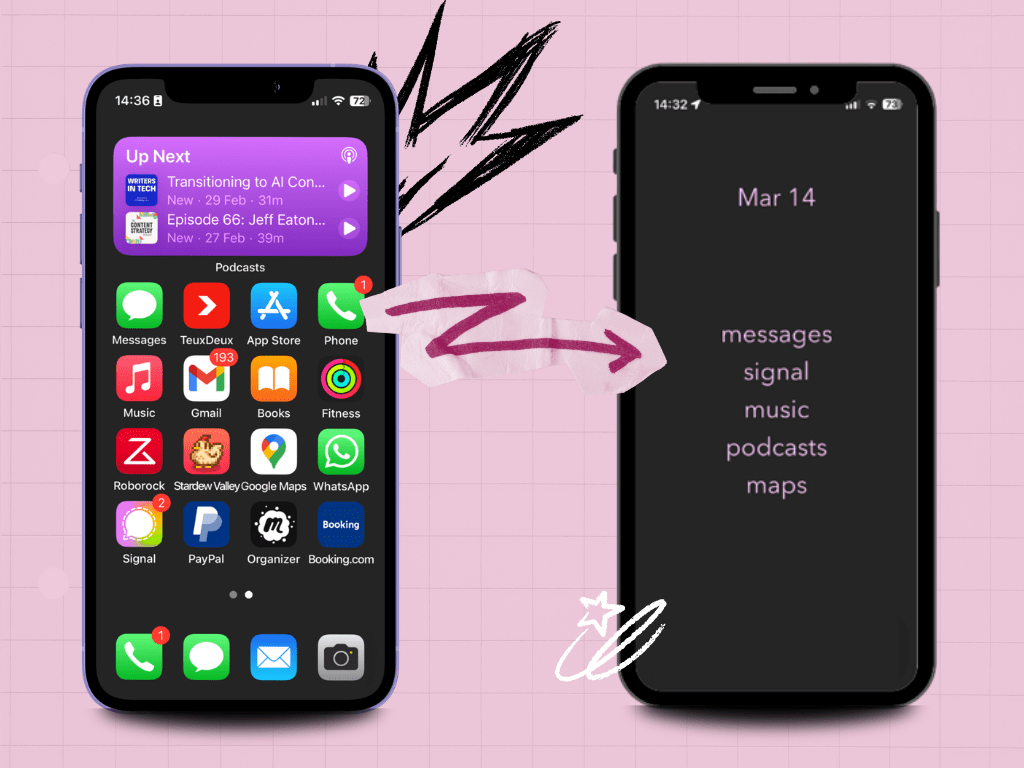
Make your default state more minimalistic, and your habits will slowly adjust.
But… why even bother?
The highly-anticipated Light Phone 3 is now out. It’s a delightful piece of e-ink technology – a minimalist’s dream, at least until you see the price ($800 plus tax).
The eye-watering price tag aside, Light Phone lacks many key features of modern life, and not just the algorithmically-driven ones. For example:
- Two-factor authentication. On the Light Phone, it can only be done via SMS, which is the most vulnerable type of 2FA.
- Digital ID or banking apps.
- Digital tickets. Also no travel or booking apps = no online check-ins to planes and accommodation.
- Messaging apps. No WhatsApp, iMessage, Discord. This is a dealbreaker because most people in my life live abroad, and roaming fees for texting would be too high.
Bottom line, I can’t justify getting a device that lacks so many important features I use on a daily basis, especially at a price nearly double what I paid for my iPhone 13 mini (which would be around $1,000 including VAT).
So, I went searching for alternative solutions.
How to turn your iPhone into a Light Phone
Note: the following instructions are iPhone-only. Android phones have way more customization options so you can recreate this in many different ways. One way is to utilize an app called Minimalist Phone, which is a launcher that looks similar to the example shown below.
Here’s how to turn your iPhone into a “QuietPhone” – a minimalist phone that keeps all the utility of a smartphone (like 2FA, digital IDs and tickets) while forcing me to constantly reassess why I picked up the phone.
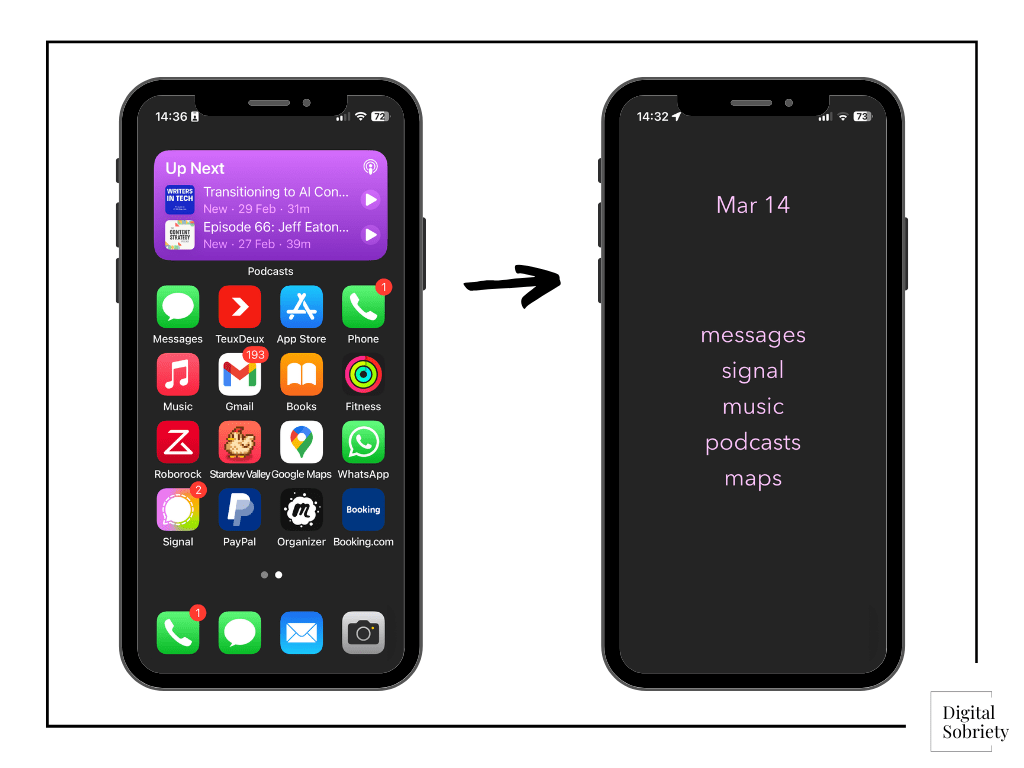
Step 1: Clear out your home screen(s)
This step is pretty self-explanatory.
- Remove all apps from your home screen(s). They should all be in the App Library.
- Remove all apps from the dock. These are the 4 apps at the bottom of your screen.
Step 2: Set up the Blank Spaces widgets
Blank Spaces is essentially made up of a few widgets that work as shortcuts to your desired apps. You’ll be able to choose which apps you’d like to access through the home page.
To start setting everything up, you should download the Blank Spaces app from the App Store.
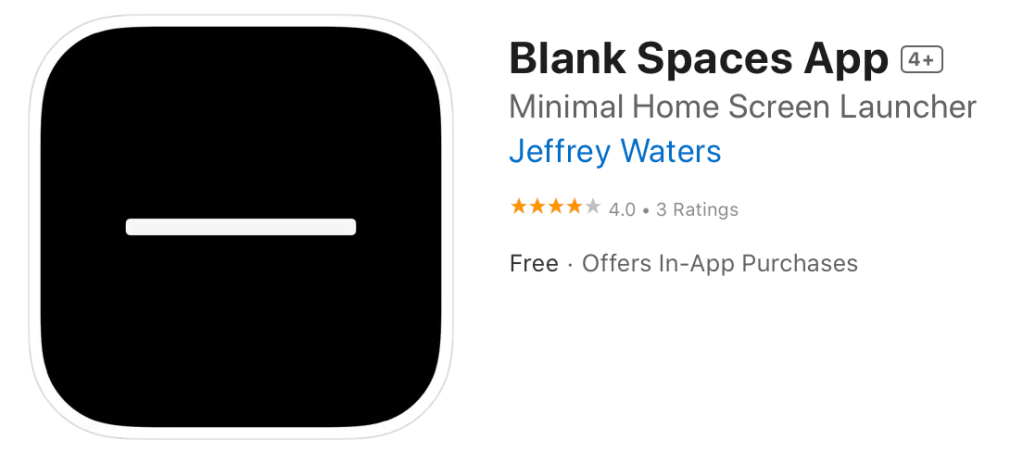
Note: You don’t have to use Blank Spaces. There are other apps like Dumbify or Minimalist Launcher – this is just what I used personally.
Once the app is downloaded, open it and follow their set-up instructions:
- Choose your desired apps, and how they’ll be named.

- Change your wallpaper to black or white, depending on whether you’re using dark mode or light mode. Find more wallpapers here.
- Place two widgets on your screen: the empty widget goes on top and the apps widget is below.
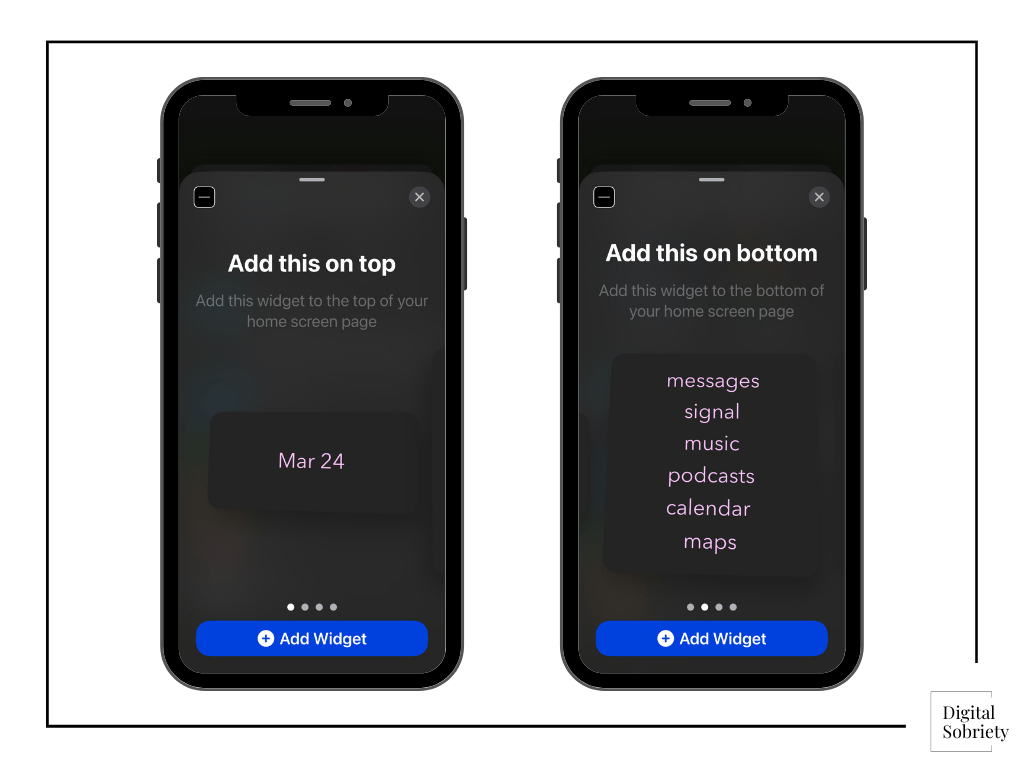
Once you’ve added the widgets, you may see that the text is cut off, or that it looks differently from the one in the screenshots above. You can tweak all of those things using the customisation options.
To access the widget customizations menu:
- Click on the circle icon in the top-right corner of the home page.
- Open the Customize widgets box.

And voilà!
The end result should look something like this:

Now you have a phone that is both minimalist.
(Optional) Step 3: Turn off interface motion
UI (user interface) motion makes your apps or background shift and move (think of the animation your phone displays when you swipe up to access the currently open apps).
If you’d like to make your less appealing, consider turning Motion off.
To do that:
- Go to your Accessibility settings
- Click on “Motion”
- Set the “Reduce Motion” toggle to ON
- A new setting option will appear: “Prefer Cross-Fade Transitions”. Set this one to ON as well.
Now your iPhone will have similar animations to an e-ink screen.
Step 4: Limit your app library
Now that your phone’s home screen has been transformed into a minimalist’s dream, it’s important to delete all the old and unnecessary apps you have in your App Library.
Think about the apps you’ve noticed you sink too much time into.
- Game apps
- Social media
- “Infinite algorithm” apps
- Other unnecessary or distracting apps
 Digital Sobriety
Leave a comment